
The majority of password recovery procedures rely on the same principle: proving one’s identity through a secondary channel. What changes radically from one provider to another is the weight given to contextual signals (device, network, geolocation) in the decision to grant or deny access. Understanding this mechanism helps avoid repeated recovery failures and allows you to retrieve a forgotten password without losing access to your accounts.
Contextual Signals and Account Recovery: What Procedures Evaluate in the Background
Google, Microsoft, and Apple do not simply verify a code sent via SMS or email. Their systems analyze the device used, the Wi-Fi network, and the login history to assess the legitimacy of the reset request.
We regularly observe recovery failures among users attempting the procedure from a new device or an unusual network. Google, for example, places more weight on “familiar” devices: a phone already connected to the account will receive a direct validation notification, while an unknown browser will trigger additional checks.
The practical consequence is clear: always initiate recovery from a familiar device. If your main computer is inaccessible, prioritize a phone where the account was already active. Attempting the procedure from a friend’s PC or a cybercafé significantly reduces the chances of success.
For those looking to retrieve a forgotten password on a Google account, the recovery page will successively offer: notification on a connected device, SMS code, code sent to a backup email address, and then identity verification questions. The order depends on the methods configured in advance.

Passkeys and Security Keys: When the Forgotten Password Is No Longer the Real Problem
The growing adoption of passkeys shifts the problem. A traditional password can be reset. A passkey deleted from a manager cannot be reconstructed, as the private key exists only locally on the device or in the associated cloud keychain.
In practical terms, if you have replaced your Google password with a passkey stored on your phone and that phone is lost or reset, the recovery procedure will no longer focus on a password but on the proof of identity itself. Google then offers to switch to another authentication method configured in advance.
We recommend always keeping at least two active recovery methods:
- A backup email address distinct from the main account, ideally with another provider
- Backup codes printed or stored in a physical safe, not just in a password manager linked to the same account
- A second enrolled device as a trusted device to receive validation notifications
This redundancy becomes critical with passkeys, as the loss of a single access point can permanently lock the account if no alternative is configured.
Google Video Selfie: New Recovery Method via Biometric Proof
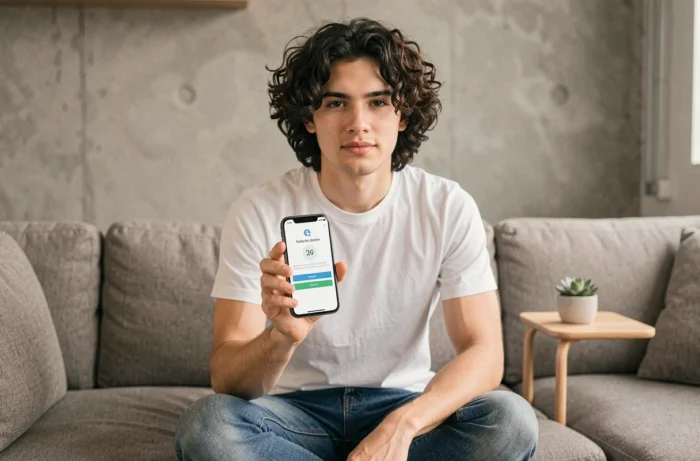
In 2026, Google introduced a recovery option via video selfie for certain eligible accounts. The principle: the user records a short video of their face, analyzed by Google’s systems to confirm the identity of the account holder.
This method serves as a last resort when other channels (SMS, backup email, trusted device) are no longer available. It does not replace traditional methods but adds to the recovery arsenal.
The point of caution: this option does not appear systematically. It depends on the level of verification already associated with the account and the presence of usable biometric data. An account without a profile picture or a history of using Google Photos will have less chance of being offered this method.
Saved Passwords in the Browser: Extraction and Limitations
Before initiating a reset, checking the browser’s password manager remains the quickest reflex. On Chrome, access is through the security settings, under saved passwords. Firefox and Safari offer similar paths.
The browser only stores passwords entered in web forms. Credentials for desktop applications, heavy email clients, or VPNs are not included. Similarly, a password changed directly on the site without going through the browser will not be updated in the keychain.
For Windows, the Credential Manager (accessible via the Control Panel) stores certain network and web credentials. On macOS, Keychain Access centralizes Wi-Fi passwords, certificates, and application credentials.
- Chrome: Settings, Autofill and passwords, Google Password Manager
- Firefox: Settings, Privacy & Security, Logins and Passwords
- Safari: System Preferences, Passwords (biometric authentication required)
- Windows: Control Panel, Credential Manager
Windows Password Reset and Microsoft Accounts
Resetting a local Windows password differs radically from that of an online Microsoft account. A local account without a pre-prepared reset disk leaves only limited options: security questions (Windows 10 and later) or reinstallation.
A linked Microsoft account, on the other hand, follows the classic online procedure: recovery page, code sent to the backup email or phone, and then creating a new password. Synchronizing the new password to the Windows machine requires an active network connection at the next startup.
For Apple accounts, the procedure goes through iforgot.apple.com and relies on two-factor authentication if it has been activated. Without a trusted Apple device or associated phone number, recovery can take several days via Apple’s manual identity verification.
The common thread of all these procedures remains the same: the ability to recover access entirely depends on what was configured before the loss. A dedicated password manager, printed backup codes, and at least two distinct recovery channels transform a stressful lockout into a formality of a few minutes.